

Smart Screenshot
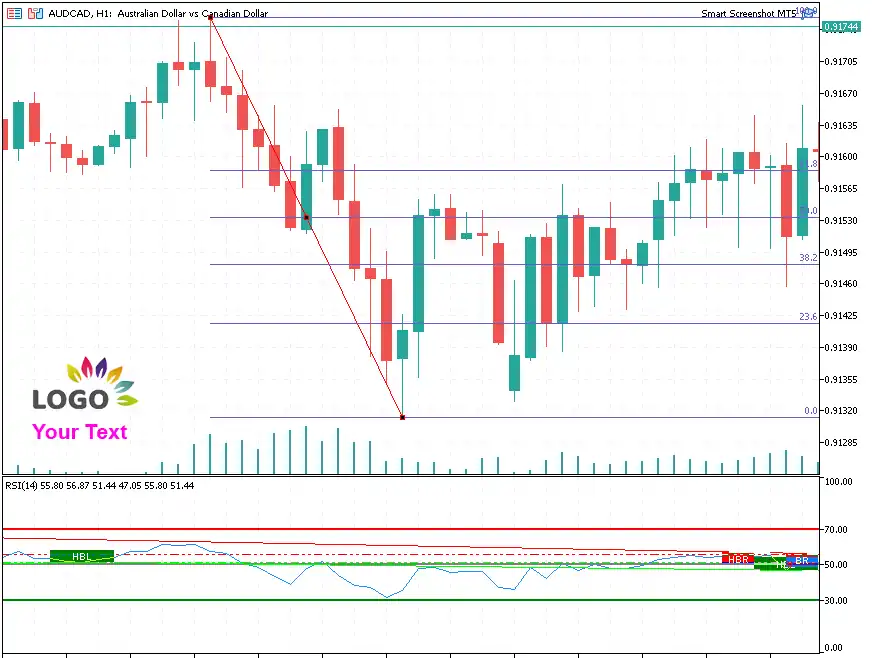
Smart Screenshot EA is a powerful MetaTrader utility (MT4/MT5) designed to automatically capture and save screenshots of your trading charts. Every screenshot includes all chart objects, drawings, and indicators, ensuring you have a complete visual record of your trading activity. Beyond saving locally, Smart Screenshot can instantly send images to your Telegram chat, group, or channel, making it easy to share trading setups, signals, or analysis with your team and community.
Category : Utilities
Version : 1.8
Updated : 2026-01-17
Key Features
Description
Smart Screenshot helps traders automatically capture chart screenshots and store them for later use. A wide range of options is available to customize screenshot timing, add extra elements such as text, logos, or descriptions, and ensure every detail on the chart is preserved. The tool also features full Telegram integration, allowing screenshots to be sent instantly to any chat, group, or channel — whether public or private — for seamless sharing and collaboration.
How it Works?
There are three main sections on the EA inputs:
When Create Screenshot:
Here are the input options to decide when screenshots are taken:
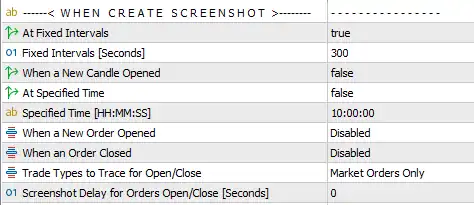
- At Fixed Intervals – Enable screenshots at regular time intervals.
- Fixed Intervals [Seconds] – Define the exact interval in seconds.
- When a New Candle Opens – Capture a screenshot at each new candle creation.
- At Specified Time – Schedule screenshots at predefined times daily.
- Specified Time – Choose the exact time for screenshot capture.
- When a New Order Opens – Capture a screenshot when a new order is opened.
- When an Order Closes – Capture a screenshot when an order is closed or deleted.
- Trade Types to Trace – Select market orders or pending orders for screenshot triggers.
- Screenshot Delay – Define a delay after order open/close before capturing.
Where to Save or Send:
Here are the options to decide where to store your images or how to share them instantly on Telegram :
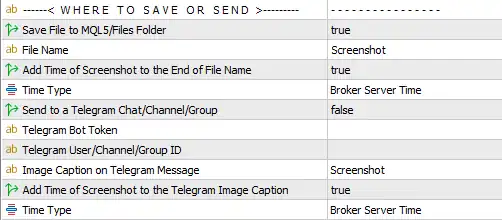
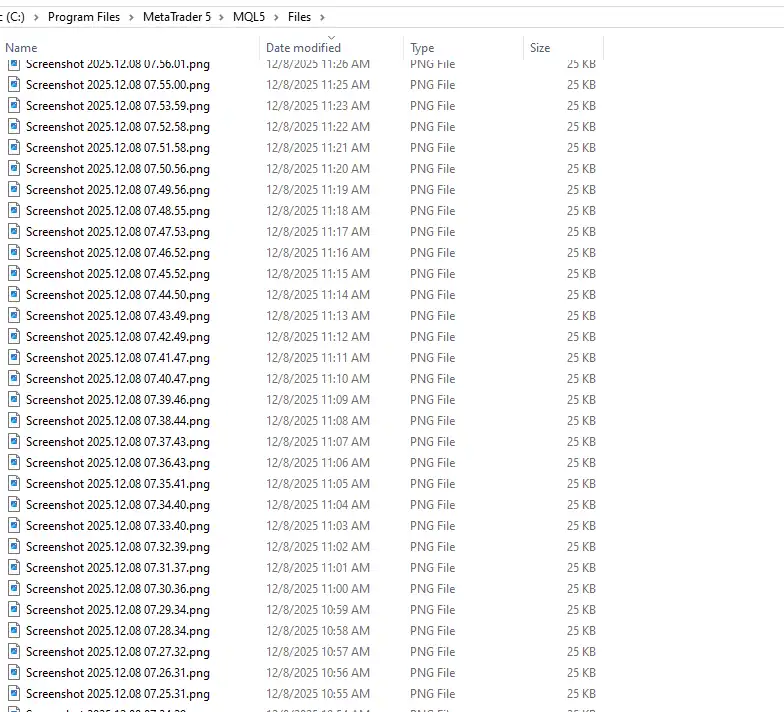
- Save File to MQLx/Files Folder – Saves the screenshot as a PNG file in the
MQLx/Filesdirectory. - File Name – Define the name of the image file.
- Add Time to File Name – Option to append the screenshot time to the file name.
- Time Type – Choose the time format: Broker Server Time, Local Time, or GMT.
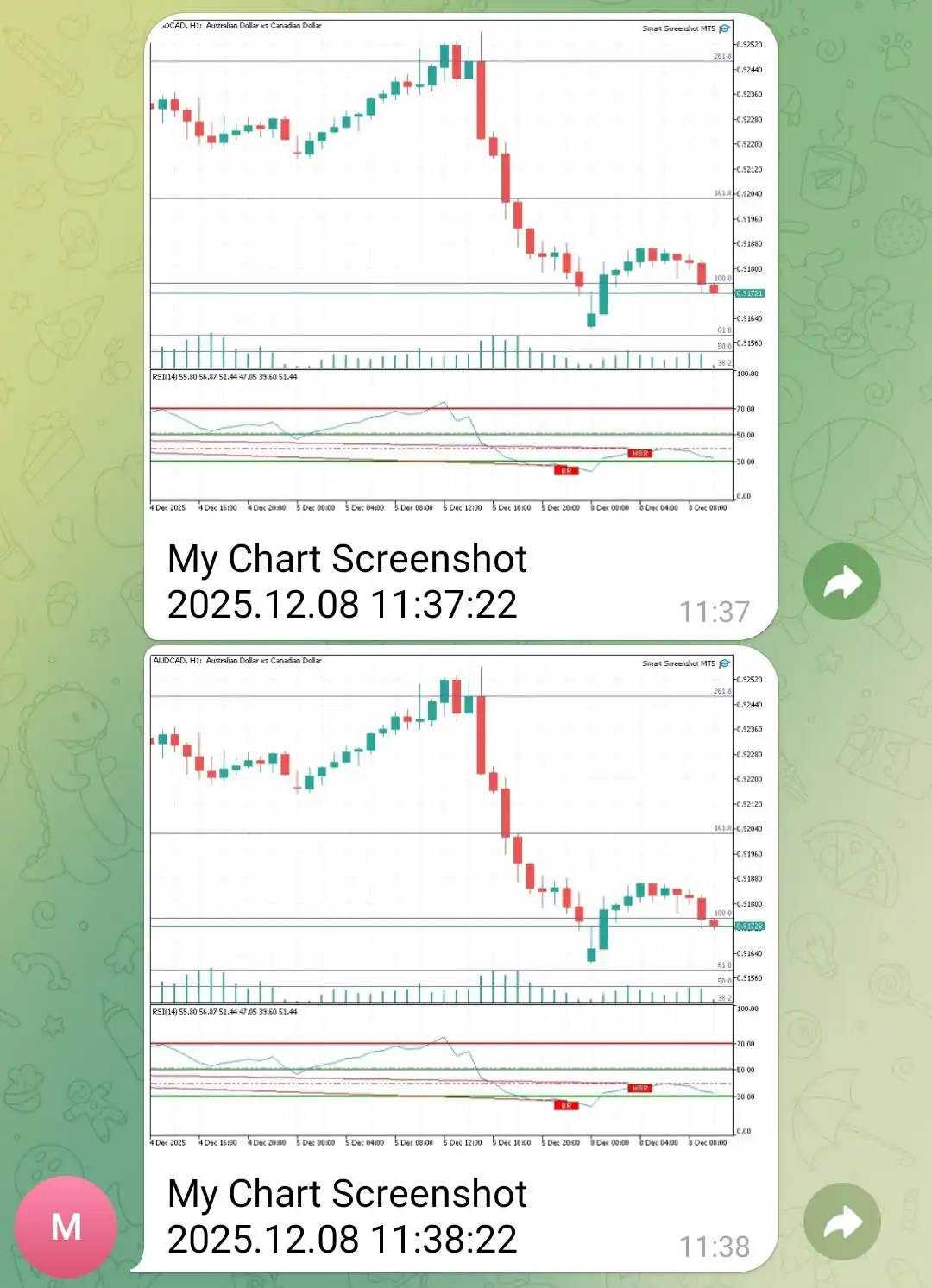
- Send to Telegram Chat/Channel/Group – Enable automatic sending of screenshots to a Telegram account.
- Telegram Bot Token – Required for integration; follow the provided link for setup instructions.
- Telegram User/Channel/Group ID – Specify the destination ID; follow the provided link for guidance.
- Image Caption – Add custom text as the caption for the Telegram message.
- Add Time to Caption – Option to append the screenshot time to the caption.
- Time Type – Select the time format to display (Broker Time, Local Time, or GMT).
Add Logo or Text:
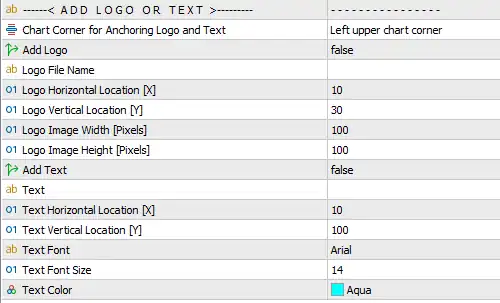
In this section, you can add a logo and a text caption to the chart, which will be included in the final screenshot. Options are available to customize the placement of the logo and text, adjust the logo size, and define the font, size, and color of the text. Note that the logo file must exist in the MQLx/Images folder and be in BMP format.
Need Help?
Here are some helpful resources. If you have questions or need assistance, feel free to contact us. You can submit a support ticket or leave a comment. we’ll respond as quickly as possible.
Screenshots
Pricing
New Offer Every 6 Hours up to 50%. Follow.
Testing is free. How to do?

Testing on Live
2 days of unlimited testing
1 Account Activation
Full Support

Lifetime
Unlimited use, forever
10 Accounts Activation
VIP Support
Free Updates
$ 30.00
 to be a light for all traders.
Too many settings. I just wanted a simple screenshot button, but this EA feels complicated.
Most traders make use of these settings, but if they feel confusing, you can simply leave them all at their defaults.
Smart Screenshot is exactly what I needed. Every chart capture includes all indicators and objects, and sending them straight to my Telegram group keeps my team aligned in real time. The logo and text overlay feature makes my screenshots look polished and professional. Perfect for sharing with clients.
Does Smart Screenshot interfere with other EAs?
No. It runs independently.
I used to manually take screenshots and send them one by one. Now, Smart Screenshot automates the entire process. I can schedule captures at fixed intervals, or trigger them when new candles or trades open. It saves me time and keeps my records organized.
Smart Screenshot saves me time and keeps my trading records organized. Sharing setups with my Telegram group is effortless now.
I like the flexibility, but the logo format restriction (BMP only) feels outdated. Supporting PNG or JPG would make it easier for most users.
That’s a good point. Unfortunately, this is a limitation of MetaTrader, which doesn’t support other image file formats on the chart, and we haven’t found a workaround for it. Hopefully future MetaTrader updates will offer more flexibility.
The comments section is now open. Feel free to share your feedback, reviews, questions, and personal experience with the product. You can also interact with other users and join the discussion. Our support team is active there as well and will respond whenever assistance is needed.