
Installation Guide
Download, Install and Activate Your MT4 & MT5 Products
Follow this step-by-step guide to install Auto Trade Tools Expert Advisors, technical indicators and utilities in MetaTrader 4 or MetaTrader 5, activate your product and begin using it correctly.
Overview
Download
Download the MT4 or MT5 version of your product.

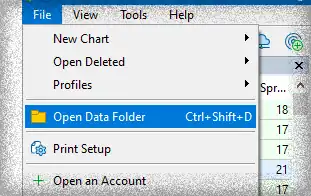
Open Data Folder
Open MetaTrader and navigate to Data Folder.

Add Files
Place the files in the Experts (EAs) or Indicators folder.
Refresh
Refresh the Navigator window to see your product.

Activate
Go to My Account and activate your product

Start Trading
Your product is ready to use. Start trading smarter!

Installation and Activation Instructions
Downloading and installing our trading robots, indicators, and utilities for MetaTrader 4 (MT4) and MetaTrader 5 (MT5) is quick and straightforward. All products are available for free download, and the setup process takes only a few minutes.
Below you’ll find complete instructions for installing and activating both Expert Advisors (EAs) and technical indicators.
Downloading and Installing Products:
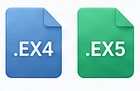
- Download the MT4 or MT5 version of the EA from the product page. You will receive a file with the extension .ex4 or .ex5.
- Open MetaTrader and press Ctrl + Shift + D, or go to File → Open Data Folder. This opens the MetaTrader installation directory.
- Open the MQL4 or MQL5 folder, then open the Experts folder.
- Paste the downloaded file into the Experts folder. (Paste Technical Indicators to Indicators folder)
- In MetaTrader, open View → Navigator or press Ctrl + N. Right‑click inside the Navigator window and select Refresh. (Alternatively, you may simply restart the terminal.)
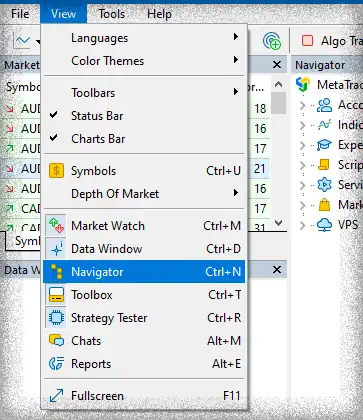
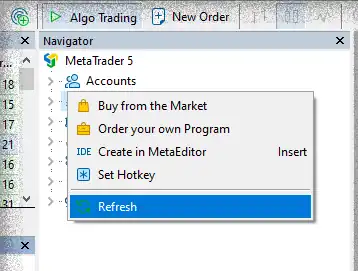
- The EA will now appear under the Expert Advisors section. (Indicators will appear under the Indicators section.)
Note: Trading robots, loss recovery systems, utilities, trade copiers, and market scanners are categorized as Expert Advisors (EAs).
Activating Products:
- After purchasing a product, open the My Account page and go to the Activations tab.
- Select the product from the list, enter your MetaTrader trading account number in the designated field, and click Activate.
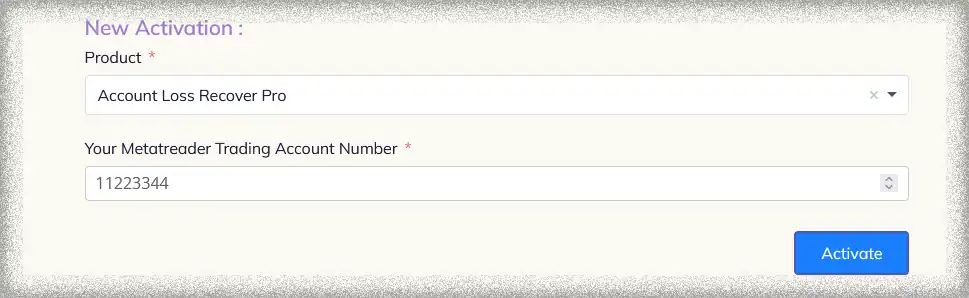
- An activation code will be generated for you—copy this code.

- In MetaTrader, open the product’s Inputs panel and paste the activation code into the Product Activation Code field.
- Once the code is applied, the product becomes fully activated and ready to use without any limitations.

Note: You can run the product in the Strategy Tester without completing an activation. The activation field may be left empty, and the EA or indicator will run normally for backtesting purposes.
Note: After activating a product on your account, the activation code does not need to be entered for every new instance of the product. A single activation is enough. Once the product is activated the first time, you can leave the activation field empty on all additional charts or instances, and the product will continue to run without any restrictions.
Frequently Asked Questions
Confirm that the file was copied into the correct MQL4 or MQL5 folder, then refresh the Navigator window or restart MetaTrader.
Expert Advisors, trading robots, utilities, trade copiers and market scanners normally belong in the Experts folder. Technical indicators belong in the Indicators folder.
Open MetaTrader and select File, then Open Data Folder. Open MQL4 or MQL5 and choose the appropriate subfolder.
Your current guide states that Strategy Tester can be used without completing activation by leaving the activation field empty.
No. After the first successful activation, the activation field can remain empty on additional charts or instances.
Select the product in your Auto Trade Tools account and enter the relevant MetaTrader trading account number to generate an activation code.
Check the selected product, account number and MetaTrader version. If the issue continues, contact support with a screenshot and the error message.
Yes, when both versions are available. Install each file in its matching MetaTrader platform.
 to be a light for all traders.