
Common Settings for Trading Robots
Trading robots often share a set of fundamental configuration parameters that remain consistent across different products. Instead of repeating the same explanations on every individual product page, we have created this dedicated section to provide a clear and comprehensive overview of these common settings. By centralizing the information here, users can quickly understand how these parameters work, why they matter, and how they apply universally to all trading robots. This approach not only avoids redundancy but also ensures that you have a single, reliable reference point whenever you need to revisit or fine‑tune your setup.
The following settings are universally applied to every trading robot we provide.
Lot Size
In this section, you can configure trade volumes by selecting either a fixed lot size or one of several dynamic lot sizing methods.
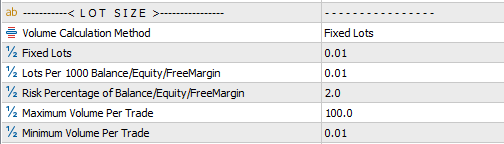
- Volume Calculation Method: There are 7 available options, grouped into three main categories:
- Fixed Lots When this option is selected, trade lot sizes remain constant and equal to the input parameter “Fixed Lots.”
- Dynamic Lots Lot sizes are calculated automatically based on account properties such as Balance, Equity, or Free Margin.
- You must specify the “Lots per 1000” value.
- The EA then determines the lot size proportionally.
- Example: If Equity Dynamic Lots is chosen and Lots per 1000 is set to 0.15, then with an account equity of 1500, the trade lot size will be 0.23 lots.
- Risk Percent Lot sizes are calculated dynamically according to the percentage of risk you allow, based on Balance, Equity, or Free Margin.
- The EA uses the defined stop loss to determine the appropriate lot size.
- Important: The stop loss must be set correctly for this option to function as intended.
- Maximum Volume per Trade: Defines the maximum lot size allowed for a single trade. This is particularly useful when using dynamic lot sizing methods.
- Minimum Volume per Trade: Defines the minimum lot size allowed for a single trade. This ensures trades are not opened below a specified threshold when using dynamic lot sizing.
Trailing Stop & Break Even
These parameters allow you to enable and fine‑tune trailing stop and break‑even features. Both are designed to reduce risk and protect open positions from turning profitable trades into losses.
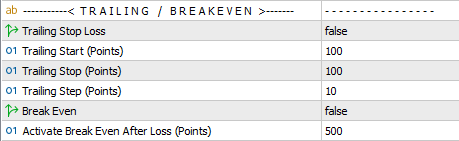
Trailing Stop:
All trailing settings are defined in points:
- Trailing Start – the profit level (in points) at which the trailing stop begins to operate.
- Trailing Stop – the distance (in points) between the current price and the stop loss once trailing is active.
- Trailing Step – the incremental movement (in points) by which the stop loss is adjusted as the price moves further in your favor.
Example: If Trailing Start = 300 points, Trailing Stop = 200 points, and Trailing Step = 5 points:
- Once the trade is +300 points in profit, the trailing stop activates.
- The stop loss is set 200 points behind the current price.
- As the price continues to rise, the stop loss moves up in 5‑point increments, locking in more profit.
Break Even:
This option allows the system to automatically move the take profit level back to the entry price once a predefined loss threshold has been reached. The only input required is the loss amount (in points) that will trigger the break‑even adjustment. This approach is useful when your priority is capital preservation rather than profit capture.
Example: If the input is set to 100 points, then whenever the position moves against you by 100 points, the break‑even function activates. The take profit is shifted to the entry price, meaning the trade will close without profit but also without further loss.
Date & Time Filter
This section allows you to restrict trading operations to specific times of the day or selected days of the week, using fully customizable options.
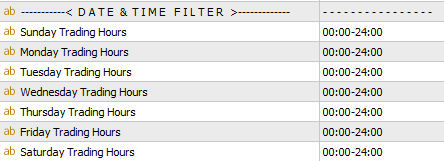
Input format: hh:mm-hh:mm
- Example:
10:30-17:00→ trading is permitted from 10:30 until 17:00. - Example:
00:00-24:00→ trading is permitted throughout the entire day. - Example:
00:01-00:00→ trading is completely disabled for that day.
This flexibility ensures you can align trading activity with your preferred sessions, strategies, or risk management rules.
News Filter
The News filter allows you to control EA behavior around scheduled events:
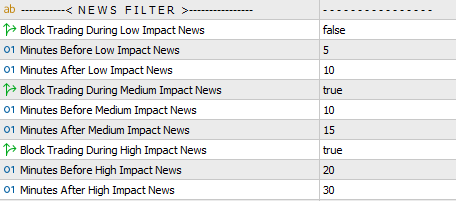
You can block trade operations for a specified number of minutes before and after news releases, based on their impact level.
- Low‑Impact News Settings: configure restrictions for minor events.
- Medium‑Impact News Settings: set rules for moderate events.
- High‑Impact News Settings: define stricter controls for major market‑moving events.
MT4 External Data Access – To enable external event data in MT4, go to Tools → Options → Expert Advisors tab, check Allow WebRequest, and add: https://nfs.faireconomy.media
Notification Settings
In this section, you can configure how alerts are delivered.
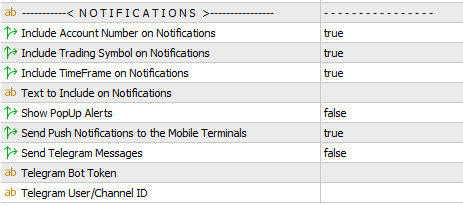
Available options include:
- Pop‑up alerts displayed directly within the MetaTrader terminal.
- Mobile push notifications sent to your MetaTrader app.
- Telegram messages delivered to a selected group, channel, or private chat.
You can also choose to append additional details—such as account number, symbol, and timeframe—to each notification. This feature is especially useful when running multiple EAs across different charts, timeframes, or even separate accounts on different terminals.
For setting up Telegram notifications, refer to the dedicated setup page.
 to be a light for all traders.