

Loss Recover Lite
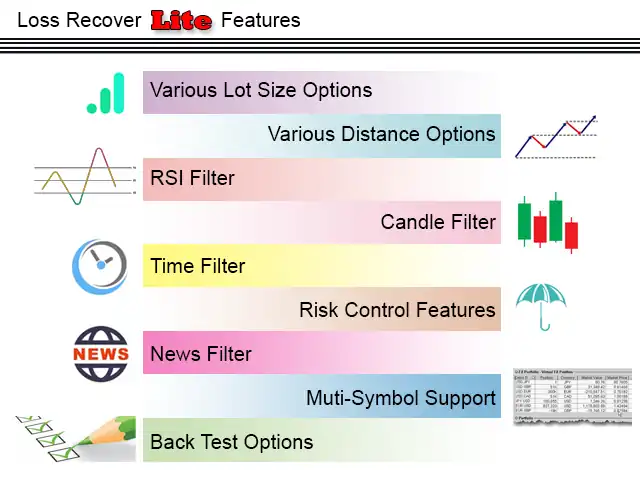
Loss Recover Lite is an Expert Advisor designed to recover losing positions opened in the wrong direction, whether manually or by another EA. It uses a controlled averaging (grid) system to close trades safely, supported by advanced filters and risk‑management features such as variable averaging distance, adjustable lot sizes, RSI and candle filters, time and news filters, stop‑loss options, and limits on total lot size and averaging steps. These safeguards help prevent excessive drawdowns while ensuring recovery when the market moves favorably.
Category : Loss Recoveries
Version : 8.2
Updated : 2026-06-18
Key Features
Description
Loss Recover Lite provides traders with a disciplined approach to recovery by leveraging the averaging method. Unlike uncontrolled grid systems that can quickly escalate trade volumes and risk, this EA integrates multiple protective mechanisms to keep accounts safe. By adjusting averaging distance and lot size dynamically, traders can tailor recovery speed and exposure to match their margin and risk plan.
The EA is equipped with intelligent filters — including RSI, candle, time, and news filters — that prevent unnecessary successive trades during unfavorable conditions. This ensures that averaging steps are only triggered when market signals align, reducing the chance of runaway drawdowns. Additionally, parameters such as maximum total lot size, maximum number of averaging steps, and time distance between steps give traders full control over how aggressively or conservatively the system operates.
Ultimately, Loss Recover Lite is best suited for traders who prefer the averaging method but want it executed with safety and precision. It recovers losses when the market provides enough movement in favor of the losing trade, while its built‑in controls safeguard against critical account conditions. This makes it a versatile recovery tool across forex, crypto, metals, and indices, balancing opportunity with protection.
See Also:
Loss Recover Lite built to recover small and medium positions even when the loss in points becomes significant.
- For higher lot sizes, choose Loss Recovery Pro.
- For smaller lot sizes with small point losses, choose Loss Recovery Edge.
Usage Manual:
Setting up the EA takes just a few clicks — attach it to your chart and adjust inputs as outlined below.
Main Settings:
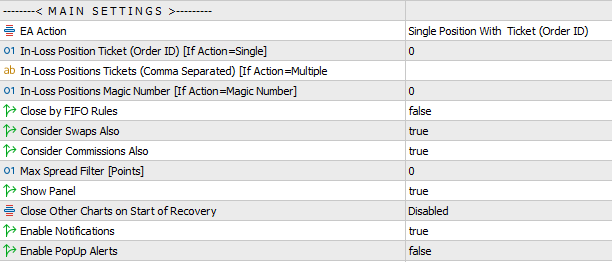
- EA Action Modes:
- Tester – run the EA in Metatrader Strategy Tester for backtesting and optimization. Read more.
- Single Position (Ticket ID) – recover one in‑loss position specified in the In‑Loss Position Ticket field, if loss exceeds Distance to Start.
- Multiple Positions (Ticket IDs) – recover all in‑loss positions listed in the In‑Loss Positions Tickets field (comma‑separated), if loss exceeds Distance to Start.
- All Positions on Account – recover every position with losses greater than Distance to Start.
- All Positions on Current Chart – recover positions tied to the chart’s symbol, if loss exceeds Distance to Start.
- All Positions with Magic Number – recover positions with a defined magic number, if loss exceeds Distance to Start.
- Ticket & Magic Settings:
- In‑Loss Position Ticket (Order ID) – specify the ticket ID for single‑position recovery.
- In‑Loss Positions Tickets (Comma Separated) – list multiple ticket IDs for batch recovery.
- In‑Loss Position Magic – define the magic number for recovery when using the All with Magic Number option.
- Close by FIFO Rule: Trade closures are executed according to the FIFO (First‑In, First‑Out) rule.
- Additional Recovery Options:
- Consider Swaps – include negative swap values in recovery.
- Consider Commissions – include paid commissions in recovery.
- Max Spread Filter – prevent recovery trades during high spreads (set to 0 to disable).
- Interface & Control:
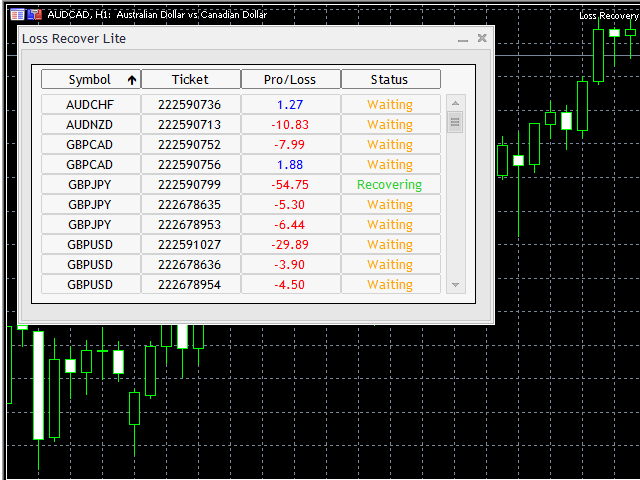
- Show Panel – display a chart panel with selected trades, losses, and recovery status.
- Close Other Charts on Recovery Start – automatically close other charts to avoid interference. Options:
- Close all charts except the recovery chart.
- Close charts with the same symbol as the recovery trade.
- Enable Notifications – receive phone alerts about EA operations.
- Enable Popup Alerts – get desktop pop‑up alerts during recovery.
Start Condition:
This section defines when recovery begins. Simply set your preferred start conditions, and the EA will monitor losses until the threshold is reached, then automatically initiate recovery.
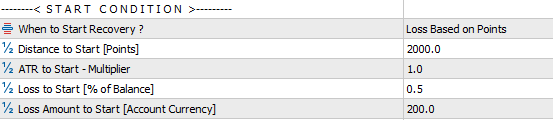
- When to Start Recovery – Options available include: Points (Fixed), Points (ATR), Percent of Balance, Loss Amount.
- Fixed Distance to Start – set a specific number of points at which recovery begins.
- Distance to Start [ATR Multiplier] – trigger recovery based on ATR‑calculated values.
- Loss to Start [% of Balance] – define recovery start when a position’s loss reaches a set percentage of account balance.
- Loss Amount to Start [Account Currency] – initiate recovery once the loss equals a specified monetary amount in account currency.
Distance:
This section defines how far apart averaging (grid) positions are placed. The EA offers several Distance Modes, and depending on the mode selected, different parameters will apply:
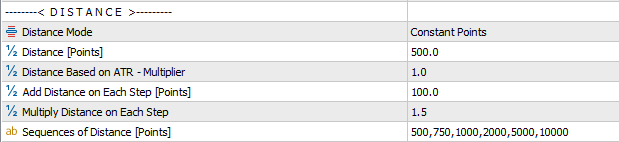
- Distance Mode Options (5 types): Choose one of the following methods to control grid spacing.
- Constant Distance [Points]: Sets a fixed distance between averaging positions.
- ATR‑Based Distance (Multiplier): Calculates grid size dynamically using the ATR indicator multiplied by your chosen value.
- Add Distance on Each Step [Points]: Increases grid distance step by step by adding a fixed number of points each time.
- Multiply Distance on Each Step: Expands grid distance progressively by multiplying the previous distance with your chosen factor.
- Sequences of Distance [Points]: Allows you to manually define each step’s distance using comma‑separated values (in points).
Note: These values represent the minimum allowed distance. If other filters (RSI, candle, time, news, etc.) are enabled, the EA will apply them as well, meaning the actual distance between trades may be larger than the input parameters.
Volume:
The lot size of recovery trades can be fully customized using the parameters in this section. The Volume Mode determines how averaging positions are sized:

- Constant Mode: Each averaging trade uses the same lot size as the original losing position.
- Add Mode (Volume to Add): A fixed number of lots is added at every recovery step.
- Multiply Mode (Volume Multiplier): Each new recovery trade’s lot size is multiplied by the size of the previous recovery trade.
- Sequence Mode (Sequences of Volume Multiplier): Allows you to define custom multipliers for each step using comma‑separated values.
- For example, if you set a sequence like
1,1.5,2, the first recovery trade equals the original lot size, the second is 1.5× the original, and the third is 2× the second.
- For example, if you set a sequence like
This flexibility lets traders balance recovery speed and risk exposure, tailoring the averaging process to their account size and strategy.
Take Profit:
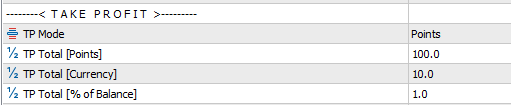
The primary purpose of this EA is loss recovery rather than profit generation. Still, traders may enable a small profit target if desired. Take Profit can be adjusted using three methods: Points, Account Currency, or Percentage of Balance. Setting these values to zero disables TP, allowing recovery to complete at break‑even.
Stop Loss:
To protect account safety, you can set a stop‑loss that prevents excessive drawdown and keeps margin levels secure. The stop‑loss can be defined in three ways: by points, by account base currency value, or by drawdown percentage.

Safety Settings:
his section provides additional safety controls to prevent over-trading and excessive trade volumes.

You can set limits on the maximum number of trades within each recovery basket, the maximum lot size for individual recovery trades, and the total lot size allowed per basket. By also defining a minimum time interval between trades, the EA avoids opening multiple positions during rapid market movements, ensuring safer and more controlled recovery.”
Time Filter:
Enable this setting to restrict recovery trades so they can only be opened during specified times of the day.

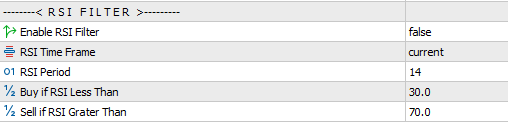
RSI Filter:
Enable this setting to filter trades using RSI signals. Buy positions are permitted only when RSI indicates an oversold zone, while sell positions are permitted only when RSI indicates an overbought zone.
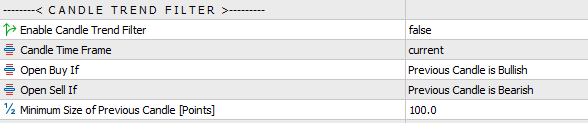
Candlestick Trend Filter:
This section applies filters based on the direction and size of the previous candlestick, which refers to the most recently closed candlestick.
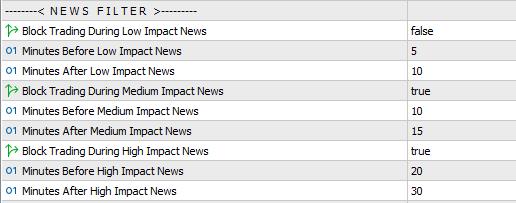
News Filter:
The News Filter is a valuable safeguard to prevent overtrading or risky trades by robots. It blocks trading during defined minutes before and after economic events. Three categories of economic events are supported, each of which can be enabled or disabled independently, with separate time ranges configurable for each.
Note for MT4 Version:
In the MT4 terminal, external event data requires enabling EA access to web resources. To set this up:
- Open Tools → Options in your terminal.
- Go to the Expert Advisors tab, enable the Allow WebRequest option, and add
https://nfs.faireconomy.mediato the list.
ATR Settings:
If ATR mode was selected in the previous sections, configure the ATR settings here.

Testing the EA:
This EA is not a direct trading tool, so testing it in the Metatrader Strategy Tester requires specific features. The EA includes built‑in options that allow you to simulate performance on historical data and identify the best settings for your trading strategy.
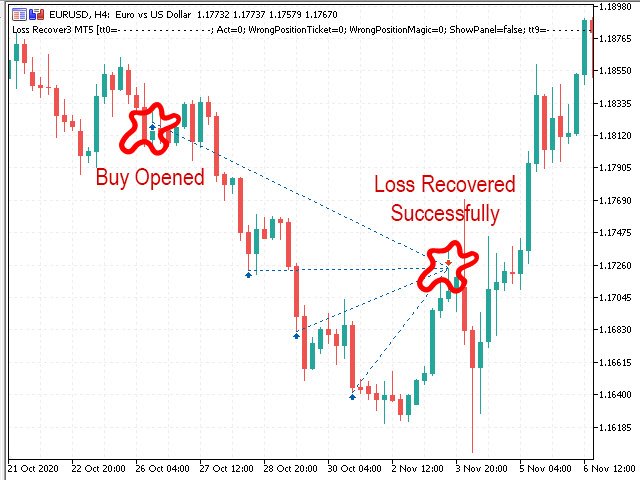
When testing the EA, you need to provide details of a sample trade that was intentionally opened in the wrong direction and moved into loss. This allows the EA to simulate how it manages drawdown and recovery in real trading conditions. Once you specify the time, direction, and volume of the sample position, the EA will open that trade during the test and begin monitoring its performance. As the market moves against the trade, the EA tracks the drawdown until the loss reaches the threshold you have defined. At that point, the recovery process is triggered automatically, and the EA begins applying its recovery logic. It is important to ensure that the market moves in the opposite direction after the sample position is opened, so the EA can properly demonstrate its recovery mechanism. This testing approach helps you evaluate how the EA reacts under adverse conditions, giving you valuable insight into its ability to manage losses and optimize settings for your trading strategy.
Steps to Configure Testing:
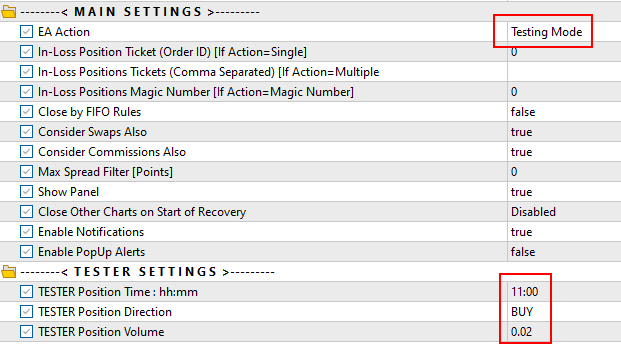
- In the Main Settings, set EA Action = Testing Mode.
- Enter the position details you want to recover using the following parameters:
- TESTER Position Time – specify the time in
hh:mmformat (e.g., 15:35). The position will open at market price on the start date of your testing period. - TESTER Position Direction – choose BUY or SELL.
- TESTER Position Volume – define the lot size of the position.
- TESTER Position Time – specify the time in
- At the start, configure a large deposit in the tester settings to support recovery operations.
- Optimize the EA by adjusting parameters such as:
- Distance to Start
- Step
- Volume Percent for In‑Direction Positions
- Volume Percent for Opposite‑Direction Positions

Example:
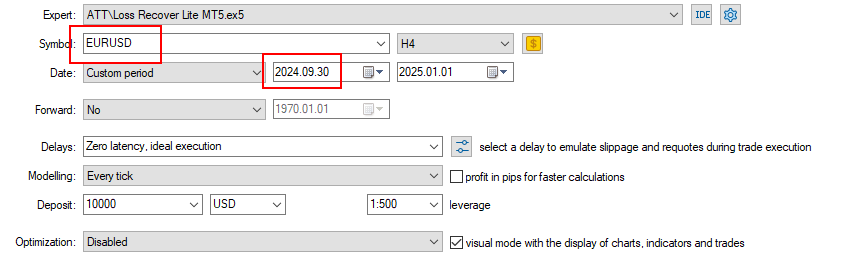
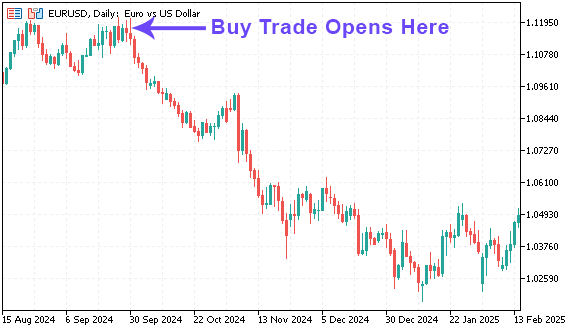
In the test below, the EA opens a BUY trade on EURUSD at 2024.09.30 11:00 and attempts to recover it.
Tester Settings:
Tester Inputs:
Test Position on Chart:
Notes:
- Best Use: Works most effectively for positions with lower lot sizes.
- Concurrent Trading: You can continue trading on your account while the EA manages losing positions and its own recovery trades until losses are recovered.
- Timeframe Independence: The chart’s timeframe is not important, as the EA uses input parameters to define the required timeframe wherever needed.
- Avoid Interference: It is advised to disable trading activity from other EAs on recovery trades once recovery begins, to avoid conflicts.
Need Help?
Here are some helpful resources. If you have questions or need assistance, feel free to contact us. You can submit a support ticket or leave a comment. we’ll respond as quickly as possible.
Screenshots
Pricing
New Offer Every 6 Hours up to 50%. Follow.
Testing is free. How to do?

3 Months
3 Months of unlimited use
2 Accounts Activation
Full Support
Free Updates
$ 35.00

6 Months
6 Months of unlimited use
3 Accounts Activation
Full Support
Free Updates
$ 50.00

1 Year
1 Year of unlimited use
5 Accounts Activation
Full Support
Free Updates
$ 70.00

Lifetime
Unlimited use, forever
10 Accounts Activation
VIP Support
Free Updates
$ 100.00
 to be a light for all traders.
The EA skipped recovery during news events, and I lost manually. I understand why, but it was frustrating.
While skipping trades during economic events protects your account in most cases, it may cause you to miss profitable moves when the event aligns with your trade direction. If this feature doesn’t suit your strategy, you can disable it directly from the EA settings.
What is the overall philosophy behind Loss Recover Lite EA, and how should traders approach using it?
The philosophy is safety first, recovery second. The EA is not designed for fast profits but for disciplined risk management. By applying filters, limits, and adaptive spacing, it prevents reckless exposure. Traders should approach it as a margin protector, not a profit machine.
It doesn’t win every battle, but it prevents catastrophic losses.
Does it adapt to volatility?
Yes, ATR mode adjusts grid size dynamically.
I started with a $1,000 account, and within two months I faced a 20% drawdown. Normally. With Loss Recover Lite, the EA stepped in, averaged positions carefully, and recovered without blowing up my margin. By the end of the quarter, my account was back in profit. It wasn’t flashy, but it was steady. That’s what I needed.
I’ve tried grid EAs before, but they all ended in disaster. This one is different. The stop‑loss and drawdown protection make it usable long‑term.
How does the Sequence Mode for lot sizing differ from Add or Multiply modes, and what advantages does it provide?
Sequence Mode allows traders to manually define multipliers for each recovery step using comma‑separated values. For example, a sequence like
1,1.5,2means the first recovery trade equals the original lot size, the second is 1.5× the original, and the third is 2× the second. This gives precise control over exposure, unlike Add Mode (which adds fixed lots each step) or Multiply Mode (which applies the same multiplier repeatedly). Sequence Mode is especially useful for traders who want a gradual increase in recovery size without exponential growth. It balances flexibility with safety, letting you design recovery exactly to your risk appetite.Recovery trades sometimes take too long to trigger. Patience is required.
Good comment. The safety is better than speed.
Does it require VPS?
Technically the VPS is not needed. But if you have unstable internet connection, VPS is recommended for stable performance, especially during news events.
I started with a $1,000 account, and within two months I faced a 20% drawdown. Normally, I’d panic and close trades. With Loss Recover Lite, the EA stepped in, averaged positions carefully, and recovered without blowing up my margin. The news filter kept me safe during FOMC announcements. By the end of the quarter, my account was back in profit. That’s what I needed.
Hi,
Can It work on MT5 netting accounts?
Hi,
No. It can not. A hedge account is needed.
The Lite version is perfect for beginners. It’s not overloaded with features, but it has enough safety to make me comfortable. I like the stop‑loss options, and the drawdown protection is essential. It’s not about making fast profits — it’s about keeping the account alive. That’s why I use it.
The basics are solid. I wish the Lite version had more advanced analytics.
All advanced features related to this strategy are already included. If you’re referring to a specific function or option, please share the details here so we can guide you accurately.
For more powerful and flexible recovery methods, you can also consider using Loss Recovery Pro or Loss Recovery Edge.
Ok, Thank you.
Can the EA be used with brokers that enforce strict margin requirements?
Yes, provided conservative settings are applied. Limiting lot sizes, trades per basket, and using ATR spacing helps comply with margin rules. Stop‑loss by drawdown percentage ensures accounts remain within safe limits. The EA’s flexibility makes it adaptable to different broker conditions.
The Lite version is perfect for beginners. It’s not overloaded with features, but it has enough safety to make me comfortable.
I was skeptical at first, but Loss Recover Lite proved itself. The averaging system is controlled, and the filters prevent reckless trades. It’s not a magic bullet, but it’s a disciplined tool that keeps me safe.
The comments section is now open. Feel free to share your feedback, reviews, questions, and personal experience with the product. You can also interact with other users and join the discussion. Our support team is active there as well and will respond whenever assistance is needed.