
Market Summary
Market Summary is a powerful Forex dashboard EA that lets traders view multiple symbols and timeframes at a glance. Featuring customizable candlestick displays, automatic screenshots, Telegram integration, and shared templates, it provides a real‑time market overview for faster, smarter trading decisions. It eliminates repetitive chart switching and provides a clear, customizable overview of price action. Whether you’re a scalper tracking short‑term moves or a swing trader analyzing broader trends, Market Summary gives you the flexibility and efficiency you need.
Category : Market Scanners
Version : 3.1
Updated : 2026-05-20
Key Features
Description
Market Summary is a powerful dashboard (scanner) designed for traders who want to monitor multiple symbols and timeframes at a glance. Instead of switching charts one by one, this utility provides a comprehensive visual overview of the market, helping you save time and make faster trading decisions.
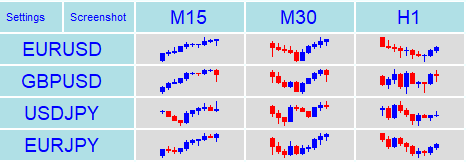
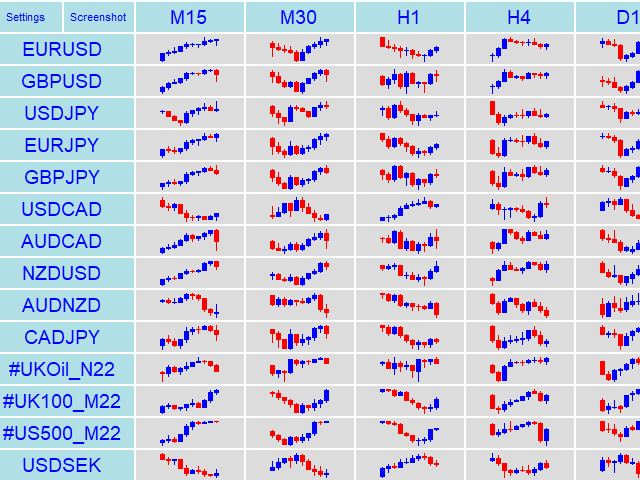
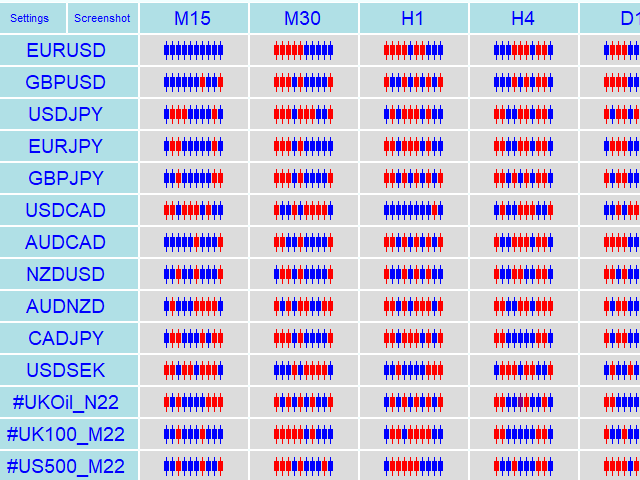
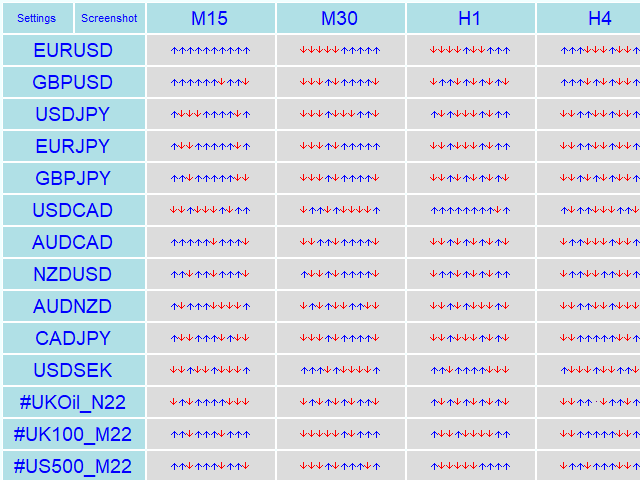
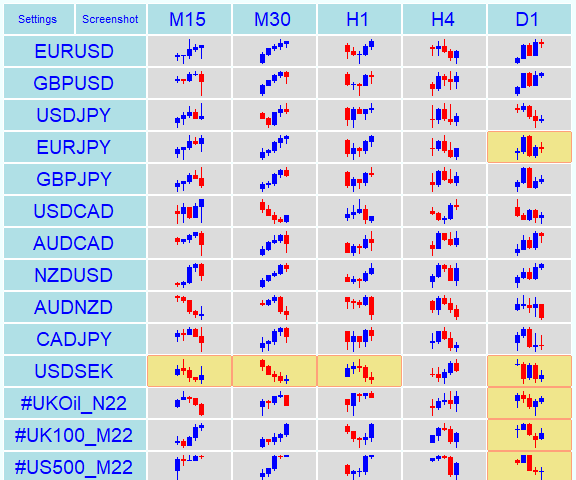
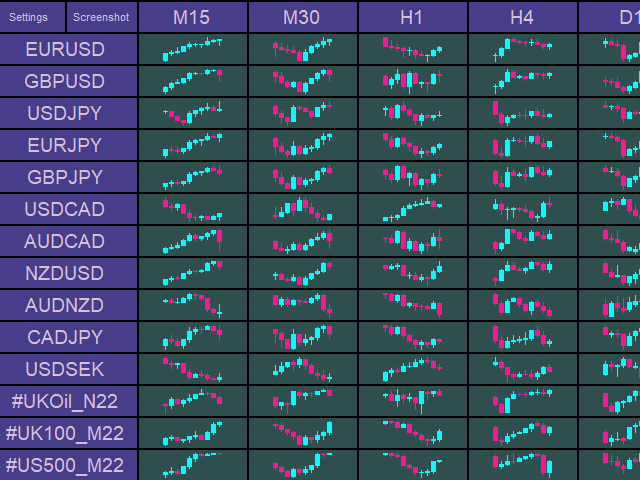
Rows represent symbols, columns represent timeframes, and each cell displays the latest candlestick trends for that symbol‑timeframe combination. With just one click, you can open the corresponding chart directly from the panel. The dashboard updates automatically, ensuring you always have the most recent market data in front of you.
Users Manual:
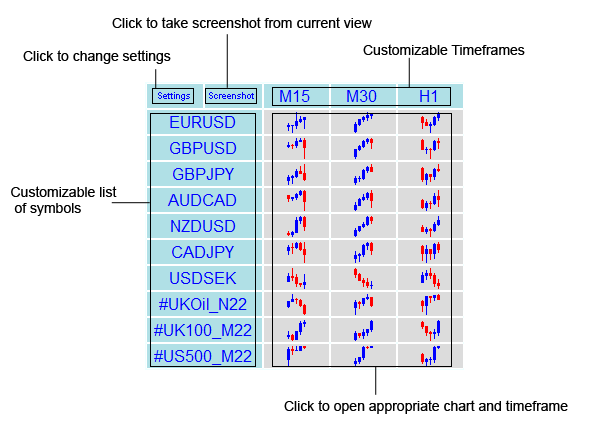
Main Panel Components:
This is a simplified view of the main dashboard. The image provides a brief description of its components. In the following sections, we present a detailed explanation of all EA features along with the user manual.
Settings:
Access the settings by clicking the Settings button in the top‑left corner of the panel. The settings panel is divided into four sections:
1. General Settings
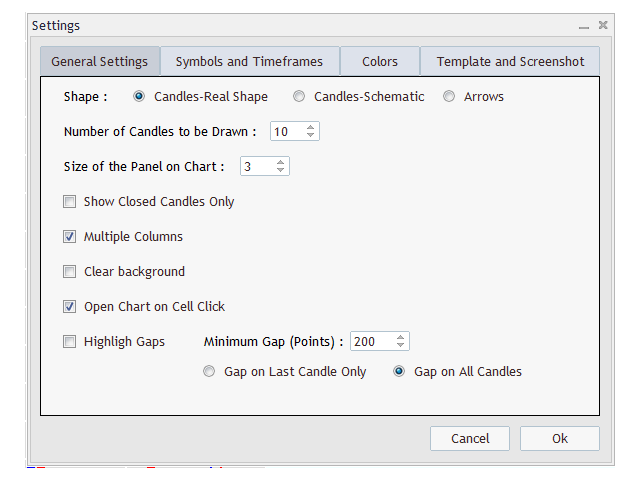
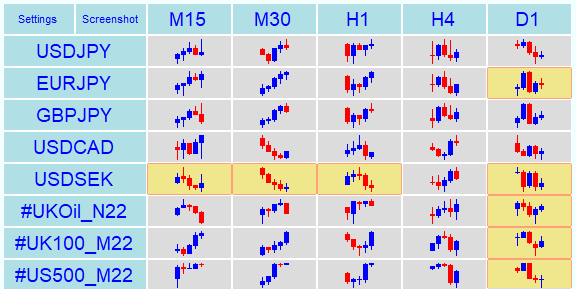
Candlestick Shape: One of the standout features of Market Summary is its flexible candlestick display options. Choose between real candles, schematic candles, or arrows.
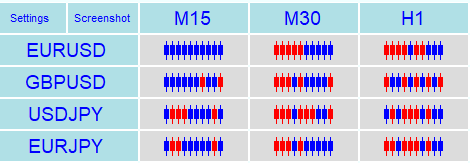
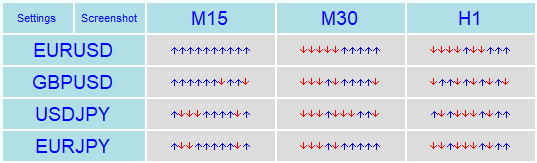
Number of Candlesticks to Display: Define how many candles appear in each cell.
Panel Size: Scale the dashboard on the chart.
Show Closed Candles Only: Ignore current (not closed) candles if enabled.
Multiple Columns: Split the panel when many symbols are added.
Clear Background: Display only the Market Summary panel by clearing the chart.
Open Chart on Cell Click: Enable or disable chart opening when clicking a cell.
Highlight Gaps: Mark cells with candlestick gaps.
2. Symbols and Timeframes:
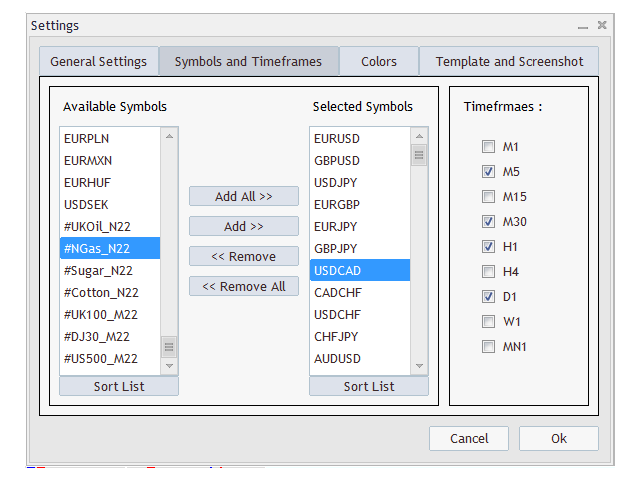
In this section, you can add or remove symbols from the panel and sort the list for a clearer chart view. If a symbol is not visible, first add it to your terminal’s Market Watch, then try again to include it in the panel. On the left side, you can enable or disable timeframes, which are displayed as the panel’s columns.
2. Colors:
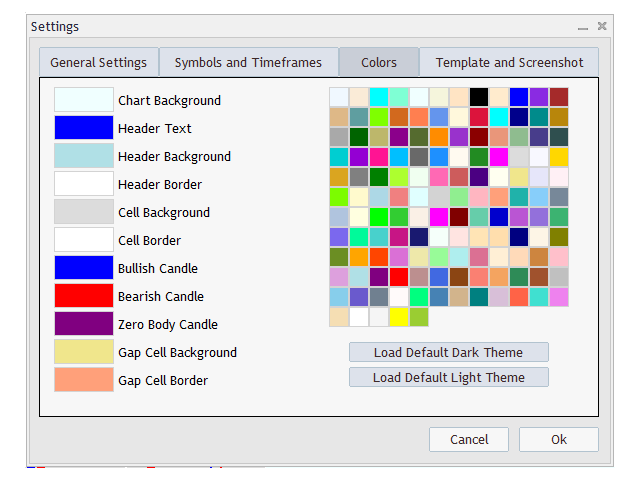
In this section, you can customize the colors of all panel elements. You also have the option to load the predefined dark or light theme.
3. Template and Screenshot:
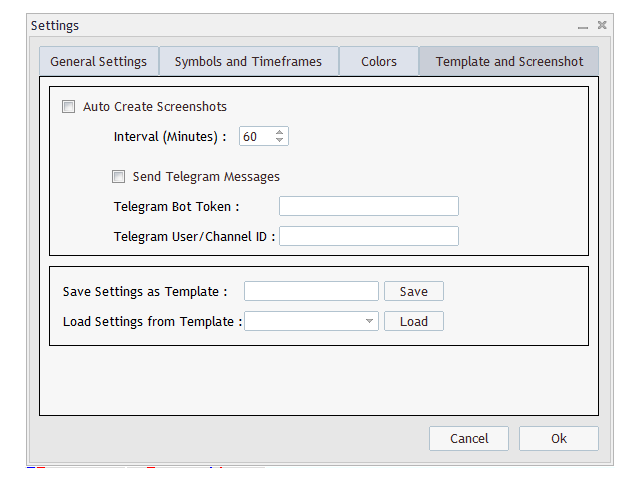
When the screenshot option is enabled, the EA automatically captures panel screenshots at defined intervals and saves them to the MQLx/Files folder. Telegram integration is also supported, allowing you to receive these screenshots directly in a chat, group, or channel. To configure Telegram integration, please follow the provided setup link.
Additionally, the panel includes options to save and load templates. By saving a template with a chosen name, you can easily share settings across different charts and terminals. Saved templates will appear in the ‘Load Template’ drop down list, making them accessible for reuse on any chart or terminal.
Need Help?
Here are some helpful resources. If you have questions or need assistance, feel free to contact us. You can submit a support ticket or leave a comment. we’ll respond as quickly as possible.
Screenshots
Pricing
New Offer Every 6 Hours up to 50%. Follow.
Testing is free. How to do?

Testing on Live
2 Days of unlimited testing
1 Account Activation
Full Support

1 Month
1 Month of unlimited use
1 Account Activation
Full Support
Free Updates
$ 30.00

6 Months
6 Months of unlimited use
3 Accounts Activation
Full Support
Free Updates
$ 40.00

Lifetime
Unlimited use, forever
5 Accounts Activation
VIP Support
Free Updates
$ 50.00
 to be a light for all traders.
The dashboard is powerful, but at first the settings felt overwhelming. Once I got used to the tabs, it became much easier to manage.
As a scalper, speed is everything. Market Summary gives me a real‑time overview of multiple pairs and timeframes, so I can spot opportunities instantly.
I run a small trading community, and Market Summary has become our central tool. The automatic screenshots sent to our Telegram channel mean everyone sees the same market overview in real time.
At first the dashboard felt crowded, but once I customized colors and panel size, it became perfect.
Is this tool heavy on resources?
No. It’s lightweight and efficient.
The ability to switch candlestick styles instantly makes analysis so much clearer. I love the arrows mode.
Hello. How do I install Market Summary? Is this an EA or an Indicator?
Hi, Simply copy the downloaded file into your MetaTrader Experts folder, then attach it to any chart. Visit step by step tutorial.
Its operation is indicator (No trading activity). But because of limitations of indicators for telegram integration, it is developed as an Expert Advisor. So please copy it to the Experts folder.
Can I use Market Summary on demo accounts?
Yes. It works exactly the same on demo and real accounts.
I like this. Market Summary makes multi‑timeframe analysis effortless. It’s like having a bird’s‑eye view of the market.
The candlestick customization is brilliant. Switching between real, schematic, and arrows makes analysis so much faster.
Market Summary does what it promises. It’s not flashy. It’s practical and saves time. It worth with this cost.
Our trading group relies on Market Summary screenshots. It keeps everyone aligned without extra effort.
Using Telegram integration, I get automatic screenshots in my trading group, so everyone stays updated without extra effort.
If you’re expecting a magic trading signal, this isn’t it. It’s a dashboard, and it’s excellent at being exactly that.
The comments section is now open. Feel free to share your feedback, reviews, questions, and personal experience with the product. You can also interact with other users and join the discussion. Our support team is active there as well and will respond whenever assistance is needed.